




Face ID is hard to test on real hardware over and over, especially when you want to check success and failure paths in a repeatable way. A simulator lets you exercise your authentication code without picking up a phone. In Xcode 27 and later, simulated devices are driven from Device Hub, so the workflow differs a little from the older standalone Simulator app.
This guide shows how to submit a Face ID unlock in Device Hub using the keyboard shortcut, and how to wrap that in a small script that boots a simulator, launches your app, and checks its logs. One caveat up front: Apple's Device Hub documentation describes general interaction with simulated devices but does not spell out a Face ID testing procedure. So the steps below combine that documentation with community-reported behavior, and you should confirm each one against your own Xcode install.
Testing Face ID in Device Hub
Device Hub lets you interact with a simulated iOS or iPadOS device using your Mac's pointer, trackpad or Magic Mouse, keyboard, menu items, and on-screen buttons. That means Face ID actions are driven by you from the Mac, either through a menu item or a keyboard shortcut, rather than by a physical face scan.
The reported commands in this article work with Xcode 27 and with iOS 26.5 and iOS 27.0 simulators. Other combinations may behave differently, so match your setup to those versions where you can.
Approach 1: Trigger Face ID manually with the keyboard shortcut
Use this approach when you are developing or debugging interactively. You run the app, reach the screen that requests biometric authentication, and submit an unlock yourself. It is the quickest way to confirm that your UI and your success handler respond correctly.
Step 1: Prepare your app for Face ID
Before testing, make sure your app is actually set up to request Face ID. In a typical app this means two things:
- Your
Info.plistcontains theNSFaceIDUsageDescriptionkey with a short, honest explanation of why you need Face ID. - Your code evaluates a policy with
LAContextfrom the LocalAuthentication framework, for exampledeviceOwnerAuthenticationWithBiometrics.
Without the usage description, a real device would not give your app the expected prompt. Fixing this first saves you from chasing what looks like a simulator problem.
Step 2: Open a simulated device in Device Hub
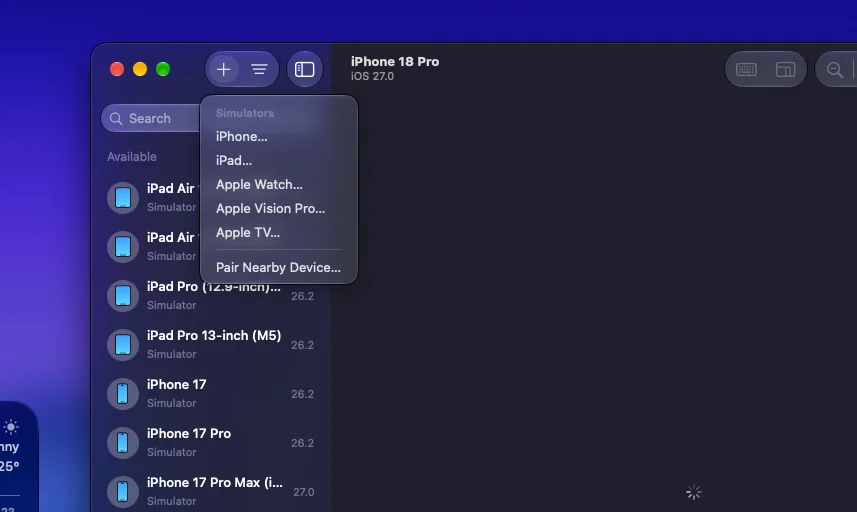
Launch Xcode 27 or later and open Device Hub. Choose an iOS simulator running a supported runtime, such as iOS 26.5 or iOS 27.0, and boot it if it is not already running. Wait until the Home Screen appears so that your app does not launch into a half-booted system.
Then run your app from Xcode with the simulator as the destination. Click into the simulated device window so that it has keyboard focus. Shortcuts are sent to the active window, and a shortcut pressed while another app is focused will not reach the simulator.
Step 3: Make sure Face ID is available on the device
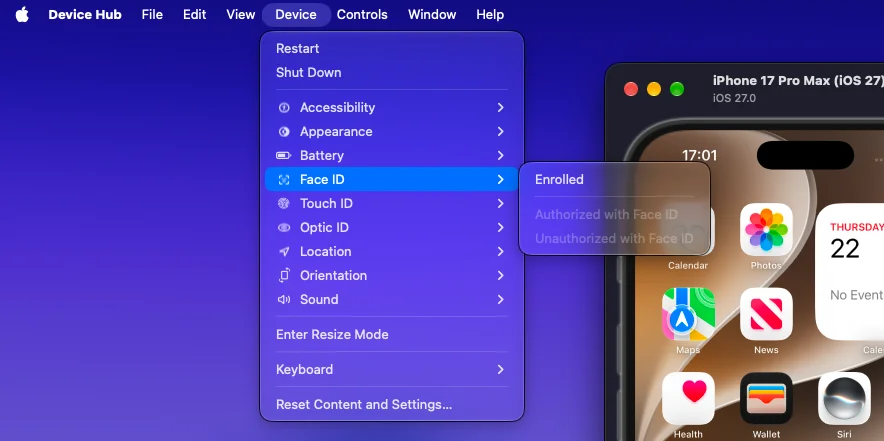
A simulated device needs to behave as if Face ID is enrolled, or your app will report that biometrics are unavailable instead of presenting the prompt. The Device Hub documentation does not describe an enrollment procedure, so look through the menu bar items for the simulated device and find any Face ID-related entries. Older versions of the Simulator offered a Face ID menu, and it is reasonable to check whether something similar exists in your build.
If your app calls canEvaluatePolicy first, log the returned error. It is the fastest way to tell the difference between "not enrolled" and "not available".
Step 4: Trigger the authentication prompt in your app
Navigate to the feature that requires authentication, such as a login button, a locked notes view, or a payment confirmation. Tap it with your pointer. Your app should now be waiting on the biometric evaluation, which is the moment when a Face ID result can be submitted.
Step 5: Submit the Face ID unlock
With the simulated device focused and the prompt active, press Command-Shift-M. According to discussion of Xcode 27's Device Hub, this shortcut submits a Face ID unlock in the simulator. Your app's completion handler should fire with a success result, and the protected content should appear.
If nothing happens, check these common causes:
- The simulator window does not have focus.
- The app is not currently waiting on a biometric evaluation.
- Face ID is not enrolled or available on the simulated device.
- The shortcut is different on your Xcode build. Check the device's menu items for the listed key combination.
You may also come across Option-Command-A in older material. That shortcut comes from a WWDC 2019 Simulator presentation, where a Face ID menu option was shown for authorizing Apple Pay. It is older Simulator guidance rather than a documented Xcode 27 Device Hub procedure, so treat it as a fallback to try, not as the expected answer.
Approach 2: Script the launch and check logs
Use this approach when you want a repeatable run: boot a specific simulator, launch the app with chosen arguments, then verify from the logs that authentication succeeded. It suits regression checks and team workflows where everyone should follow the same sequence. A published example of this pattern uses a shell script invoked like this:
./faceid-test.sh <udid> com.example.MyAppThe first argument is the simulator's UDID, and the second is your app's bundle ID. Any app launch arguments can be added after the bundle ID. The script is a wrapper around standard command-line tools, and it works with Xcode 27 and with iOS 26.5 and iOS 27.0 simulators.
Here is how the pieces fit together:
- Find the UDID. Run
xcrun simctl list devicesand copy the identifier of the simulator you want to test with. - Boot and wait. The script uses
bootstatus -b, which boots the device if it is not already running and waits until booting finishes. This prevents launching your app too early. - Launch the app. The script starts the bundle ID you passed in, along with any optional launch arguments you gave after it.
- Submit the unlock. While the app waits at the Face ID prompt, press Command-Shift-M in the simulated device window.
- Search the logs. The script looks for the log message your app writes on success or failure. The
--startoption limits the search to lines written after launch, so output from a previous run cannot give you a false pass.
The facts available for this article do not show the unlock itself being sent from the command line, so plan on pressing the shortcut yourself during the run. What the script automates is the setup and the verification, not the face scan.
To make log checking reliable, have your app log a distinctive line when authentication finishes, for example "Face ID result: success". Search for that exact string. Avoid matching on generic words that could appear in unrelated system logs.
Tips for Reliable Face ID Testing
- Test both outcomes. A success path is only half the picture, so also confirm what your app does on a failed or canceled authentication, and add a passcode or password fallback if your design needs one.
- Keep launch arguments for test-only behavior. Passing a flag after the bundle ID, as the script allows, is a clean way to skip onboarding or jump straight to the secured screen.
- Pin your versions. Since the commands were reported against Xcode 27 with iOS 26.5 and iOS 27.0 simulators, note which runtime you used in your test documentation.
- Remember that a simulator is not a device. It cannot show how real lighting, angles, or masks affect recognition, so keep a final check on physical hardware before shipping.
Conclusion
Testing Face ID in Xcode 27's Device Hub comes down to three things: a correctly configured app, a booted simulator with focus, and a Face ID unlock submitted with Command-Shift-M. For repeatable runs, a small script that waits for boot, launches your bundle ID, and searches logs from the launch point makes the result easy to verify.
Because Apple's own Device Hub documentation does not describe a Face ID procedure, double-check the shortcut and menu items on your installation. If the primary shortcut does not work, the older Option-Command-A combination from earlier Simulator guidance is worth a try.