



Apple calls it removing an app, not deleting it. Once you remove an app from the Apps main view in App Store Connect, it no longer appears in your list of active apps. The process is simple, but it only works when the app meets several conditions, and some consequences cannot be undone.
This guide covers what must be true before you can remove an app, the exact steps to remove it, how to restore it, and the things that remain even after removal, such as the App ID. Read the warnings before you click the final confirmation.
Before You Remove Your App
A few checks up front will save you from dead ends. Removal is blocked in some situations, and it has lasting effects on your app name, SKU, and bundle ID.
Check who can remove apps
Only an Account Holder or an Admin can remove an eligible app. If you have another role, such as App Manager or Developer, ask someone with one of those roles to do it for you.
Check the app's status
Apps in any of the following statuses cannot be removed:
- Ready for Review
- Waiting for Review
- In Review
- Metadata Rejected
- Rejected
If your app is in one of these states, resolve it first. For example, you may need to wait for the review to finish or move the app out of that state before removal becomes available.
Check for transfers and bundles
An app that is actively being transferred cannot be removed. The same applies to an app included in an app bundle. If the app is part of a bundle and has not been approved, remove it from the bundle first. Also note that app bundles themselves cannot be removed. An approved bundle cannot be deleted, although it can be removed from the App Store.
Understand the consequences
- You lose ownership of the app name. You can restore the app only if no other developer account has taken the name in the meantime.
- The SKU cannot be reused within the same organization.
- The bundle ID cannot be reused if you uploaded a build.
- The explicit App ID stays. An explicit App ID for an app uploaded to App Store Connect cannot be deleted.
If you only want to stop customers from downloading the app, you may prefer to remove it from the App Store rather than removing it from your account. Doing so removes all versions of the app from sale but keeps the record in place.
Removing the App from App Store Connect
The process has two phases. First, make the app ineligible for sale everywhere. Second, use the Remove App button. The steps below cover both.
Step 1: Remove the app from sale everywhere
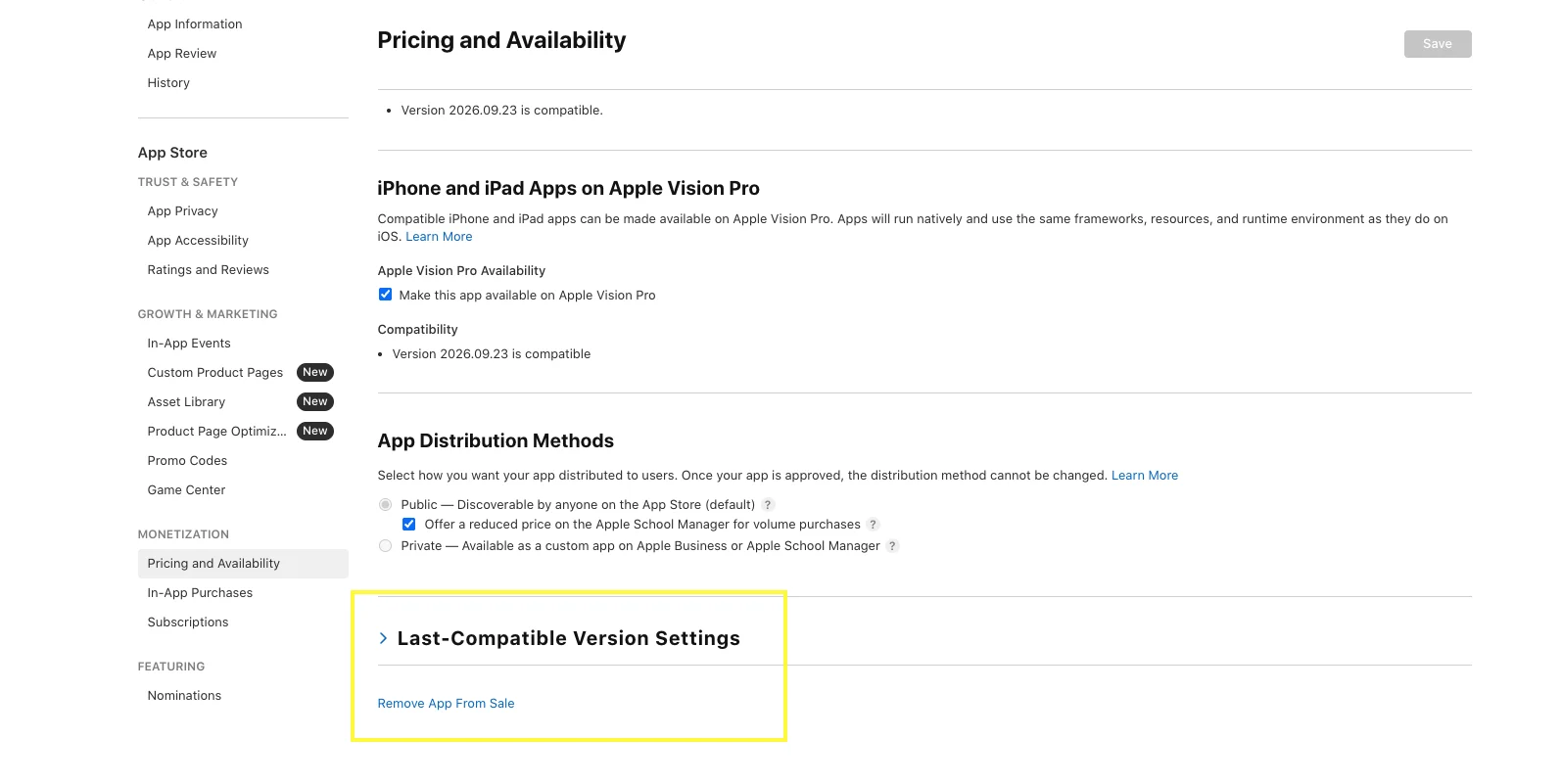
Before the Remove App option works, the app must be removed from sale in every country and region. This applies even if the app was never released. Open your app, go to its pricing and availability settings, and clear all countries and regions so it is not available anywhere.
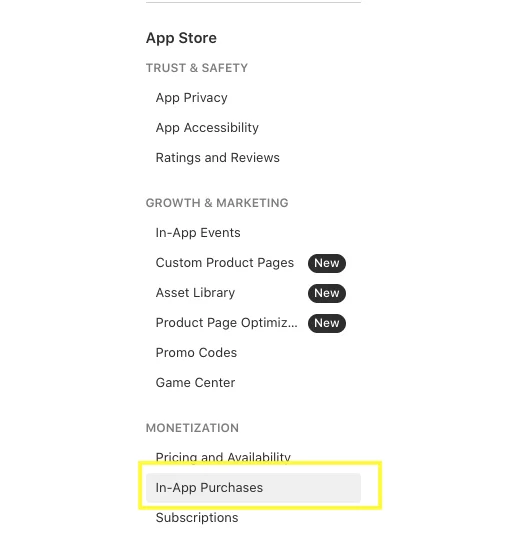
If the app has in-app purchases, remove those from sale as well. Leftover purchases that are still for sale can prevent removal.
Step 2: Deselect alternative marketplaces
If you distribute through alternative app marketplaces, you must also deselect the app from each one. In App Store Connect, go to Users and Access -> Integrations and deselect the app from every marketplace listed. If you do not use alternative distribution, skip this step.
Step 3: Open the app in App Store Connect
Sign in to App Store Connect with an Account Holder or Admin account. Click Apps and select the app you want to remove from the list. Confirm the status is not one of the blocked states listed earlier.
Step 4: Go to App Information
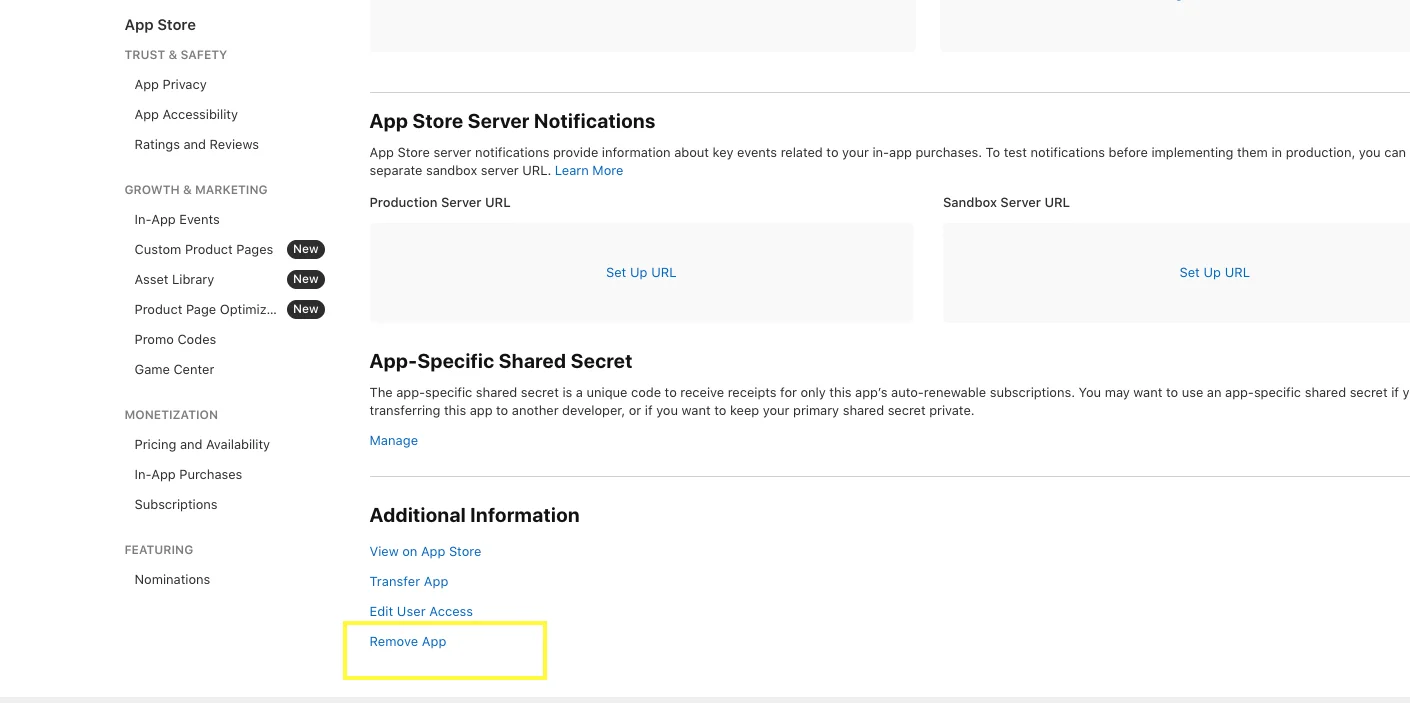
In the left sidebar, select App Information. This page holds the app's general details, including its name, bundle ID, and category. Scroll down to the Additional Information section near the bottom of the page.
Step 5: Click Remove App and confirm
In Additional Information, click Remove App. A confirmation dialog explains what removal means. Read it carefully, especially the part about losing ownership of the app name. When you are sure, click Remove to confirm.

The app disappears from the main Apps view. If you do not see the Remove App option, recheck your role, the app's status, and whether it is still on sale in any region, in a bundle, or under transfer.
Restoring a Removed App
Removal is not always final. You can bring an app back, provided its name is still available. If another developer account now uses the name, the app cannot be restored.
Step 1: Find the removed app
In Apps, open the app-status menu and choose Removed Apps. Select the app you want to bring back. If the removed app was the only app on your account, it appears in the regular Apps list instead.
Step 2: Restore it
Open App Information, scroll to Additional Information, and click Restore App. Choose either Limited Access or Full Access, then confirm with Restore.
Remember that the SKU cannot be reused in the same organization, and if you uploaded a build, the bundle ID cannot be reused for a new app. Restoring the original record is how you keep working with those identifiers.
Troubleshooting Common Problems
- Remove App is missing or disabled: Confirm that you are an Account Holder or Admin and that the app is not in a review or rejected state.
- App is still in a bundle: Remove the unapproved app from the bundle first. If the bundle is approved, it cannot be deleted, only removed from the App Store.
- App is being transferred: Wait until the transfer completes or cancel it before trying again.
- In-app purchases block removal: Make sure each in-app purchase is removed from sale.
- You want the bundle ID back: If a build was uploaded, the bundle ID cannot be reused. Use a new bundle ID for a new app, or restore the original app.
- You want to delete the App ID: An explicit App ID for an uploaded app cannot be deleted, so it will remain in your developer account.
Conclusion
Removing an iOS app from App Store Connect is a short process once the groundwork is done: take the app off sale in every country and region, remove its in-app purchases, deselect alternative marketplaces if relevant, then use Remove App under App Information. Only an Account Holder or Admin can do this, and apps under review or rejected cannot be removed.
Treat the action carefully. You give up ownership of the app name, the SKU cannot be reused, and the bundle ID is locked if a build was uploaded. If you change your mind, restore the app from Removed Apps, as long as the name is still available.