



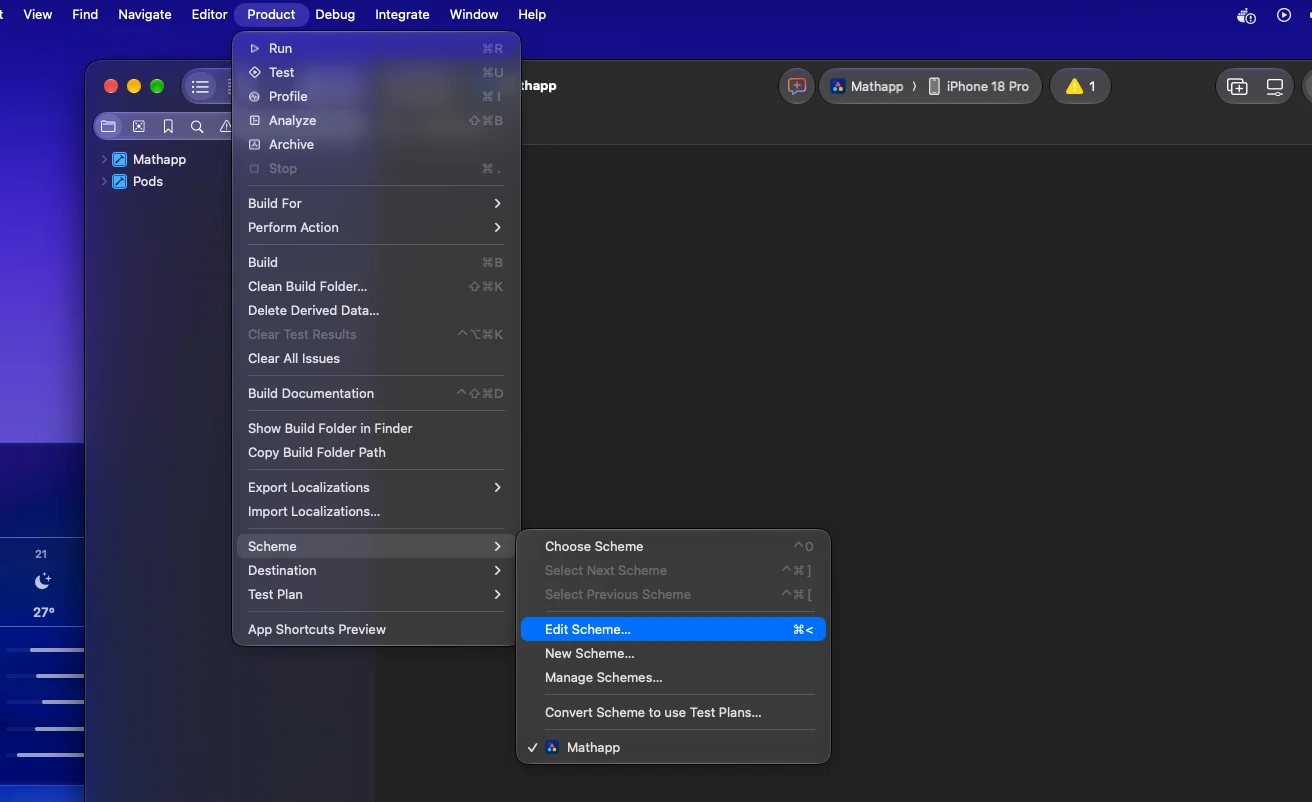
Xcode 27 replaced Simulator.app with Device Hub, a single place to manage the devices you build and test against. If you have spent years creating and deleting simulators through the old tools, the new workflow takes a little getting used to, but it is straightforward once you know where things live.
This guide shows you how to open Device Hub, find the simulators it already knows about, add a new simulator configuration with the OS version and device model you need, and remove simulators you no longer want in your list.
Managing simulators in Device Hub
Device Hub's sidebar lists simulators that you added there, along with simulators you previously selected as run destinations in Xcode. That means the list reflects your own working set rather than every possible device configuration. When you need a configuration that is not in Xcode's run-destination menu, you add it from Device Hub. When a simulator has outlived its usefulness, you remove it from the same sidebar.
Before you begin, make sure you are running Xcode 27 or later, since Device Hub is not part of earlier versions and Simulator.app is no longer the tool used here.
Step 1: Open Device Hub
There are two ways to open Device Hub. Use whichever fits your workflow.
- From the run-destination menu: Click the run-destination menu in Xcode's toolbar, the one that shows the device or simulator your app will run on, and choose Manage Devices….
- From the menu bar: Choose Xcode -> Open Developer Tool -> Device Hub.
The first method is the quickest when you are already about to pick a destination and notice the simulator you want is missing. The second is handy when you want to work with devices without thinking about a particular project.
Step 2: Review the simulators already in the sidebar
When Device Hub opens, look at the sidebar. It shows the simulators you added in Device Hub and the ones you have previously chosen as run destinations in Xcode. Take a moment to scan this list before adding anything, because the configuration you want may already be there.
To see the simulated devices that are available, open the sidebar's filter menu and choose Simulators. This narrows the list to simulators only, which is useful if you also have physical devices connected and want to cut the clutter.
Step 3: Click the Add Device button
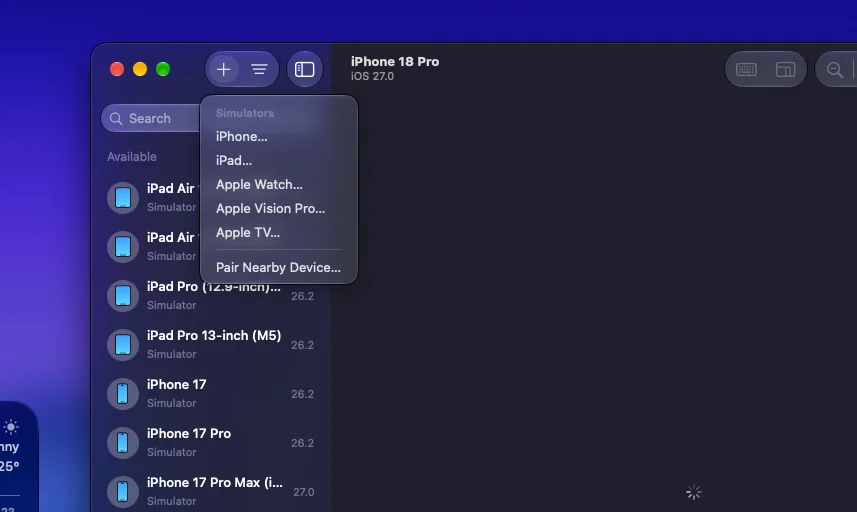
If the simulator configuration you need is not in the run-destination menu, add it yourself. At the top of the sidebar, click the Add Device (+) button. A menu appears with several categories. Under Simulators, choose a device to start creating a new simulator.
This is the key difference from picking a destination in the toolbar. The toolbar only offers configurations Xcode already lists, while the Add Device button lets you define a new combination of device and OS.

Step 4: Configure the new simulator
After you choose a device under Simulators, a dialog appears where you set up the simulator. You can fill in the following:
- Name: Optional. Enter a custom name if you want something more descriptive than the default. A name such as one that mentions the test scenario can make it easier to spot the simulator later in a long list.
- OS version: Select the operating-system version the simulator should run.
- Device model: Select the device model you want to simulate.
Because you can pair a model with an OS version of your choosing, this is the place to build configurations for regression testing, such as an older OS on a particular device, alongside your everyday target.
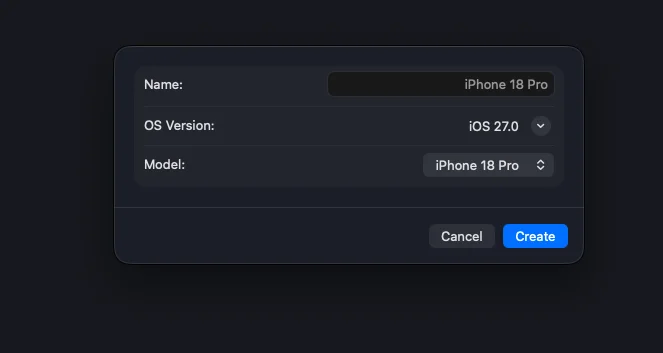
When you are happy with the settings, click Create.
Step 5: Confirm the simulator was added
Once you click Create, the new simulator appears under Available in the sidebar. Select it to confirm that the name, device model, and OS version match what you intended. If something is wrong, the simplest fix is to remove the simulator (see the steps below) and create it again with the correct settings.
From here, the simulator is ready to use as a destination for your app. Because it now exists in Device Hub, you can also look for it when choosing a run destination in Xcode.
Step 6: Remove a simulator you no longer need
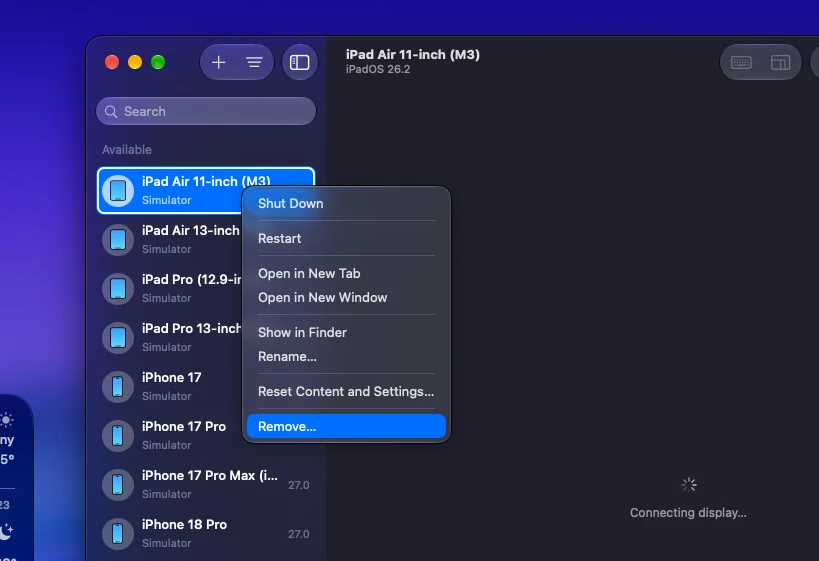
To remove a simulator from Device Hub, find it in the sidebar, Control-click it (hold Control and click, or use a secondary click), and choose Remove from the context menu.
Do this for any simulators that were created for a one-off test, that duplicate another configuration, or that you created with the wrong settings. Keeping the sidebar tidy makes it faster to find the devices you actually use.
Tips for keeping your simulator list manageable
- Check before you add. The simulator you want may already be in the sidebar or in the run-destination menu. Adding a duplicate only makes the list longer.
- Use clear names. The name field is optional, but a descriptive name helps when several simulators share the same device model with different OS versions.
- Filter the sidebar. Use the filter menu and choose Simulators when you want to focus on simulated devices only.
- Remove as you go. Clean up temporary configurations once a test cycle ends, rather than letting them accumulate.
- Recreate instead of editing. If a configuration is wrong, remove it and create a new one with the right device model and OS version.
Troubleshooting
If you cannot find a simulator in the run-destination menu, that is expected when it was never selected as a destination or added in Device Hub. Open Device Hub, click the Add Device (+) button, and create it under Simulators.
If you cannot find the Device Hub menu item, confirm that you are using Xcode 27 or later. In earlier versions, simulator management lived in different tools, and the steps above will not match what you see on screen.
If a simulator you expect is missing from the sidebar, remember what the sidebar shows: simulators added in Device Hub and simulators previously selected as run destinations. Try the filter menu and choose Simulators to make sure a filter is not hiding the entry.
Conclusion
With Xcode 27, Device Hub takes over from Simulator.app as the place to manage simulators. You open it from Manage Devices… in the run-destination menu or through Xcode -> Open Developer Tool -> Device Hub, add new configurations with the Add Device (+) button, and remove old ones with a Control-click and Remove.
Spend a few minutes now to prune your sidebar and create the handful of device and OS combinations you test most. A short, well-named list makes everyday builds and test runs noticeably smoother.