



Apple requires every new app and every app update to come with privacy details entered in App Store Connect. These details become the "privacy label" shown on your App Store page. If your app uses Firebase Analytics, the SDK (software development kit, a bundled library) is part of what you must describe.
This article explains how to approach that form, which questions need the most care, and where Firebase's own guidance stops and your own judgment begins.
Why Firebase Analytics Changes Your Privacy Label
Firebase's guidance for Apple platforms is clear on one point: you, the developer, are responsible for making the privacy label accurate for your app's actual use of Firebase. Google cannot fill in the form for you, because the answer depends on how your app is configured.
Firebase ships privacy manifests, which are files describing data that its libraries always collect or collect by default. They are a good starting point, but they are not the whole picture.

Check what you actually installed
Firebase advises checking which Firebase build targets your dependency manager (Swift Package Manager or CocoaPods) actually installed. The behaviors that may need disclosure depend on which libraries are in your app, not on the full Firebase catalog. Open your project's dependency list and write down every Firebase product it includes before you touch the form.
Include your own data too
Firebase gives an example: if your app stores APNs (Apple Push Notification service) tokens in Cloud Firestore, you might consider disclosing that the app collects identifiers, even though Cloud Firestore's published privacy manifest does not say it collects identifiers. In other words, the label covers what your app does with Firebase, not just what the SDK does on its own.
A related example is A/B Testing. Its SDK sets and uses Google Analytics user properties to record which experiment group a user belongs to for Remote Config and In-App Messaging. If you use those products, include them in your review.
Walking Through the App Store Connect Form
The form is a series of questions with checkboxes. The exact wording can change over time, so follow what the page shows, but the flow is stable:
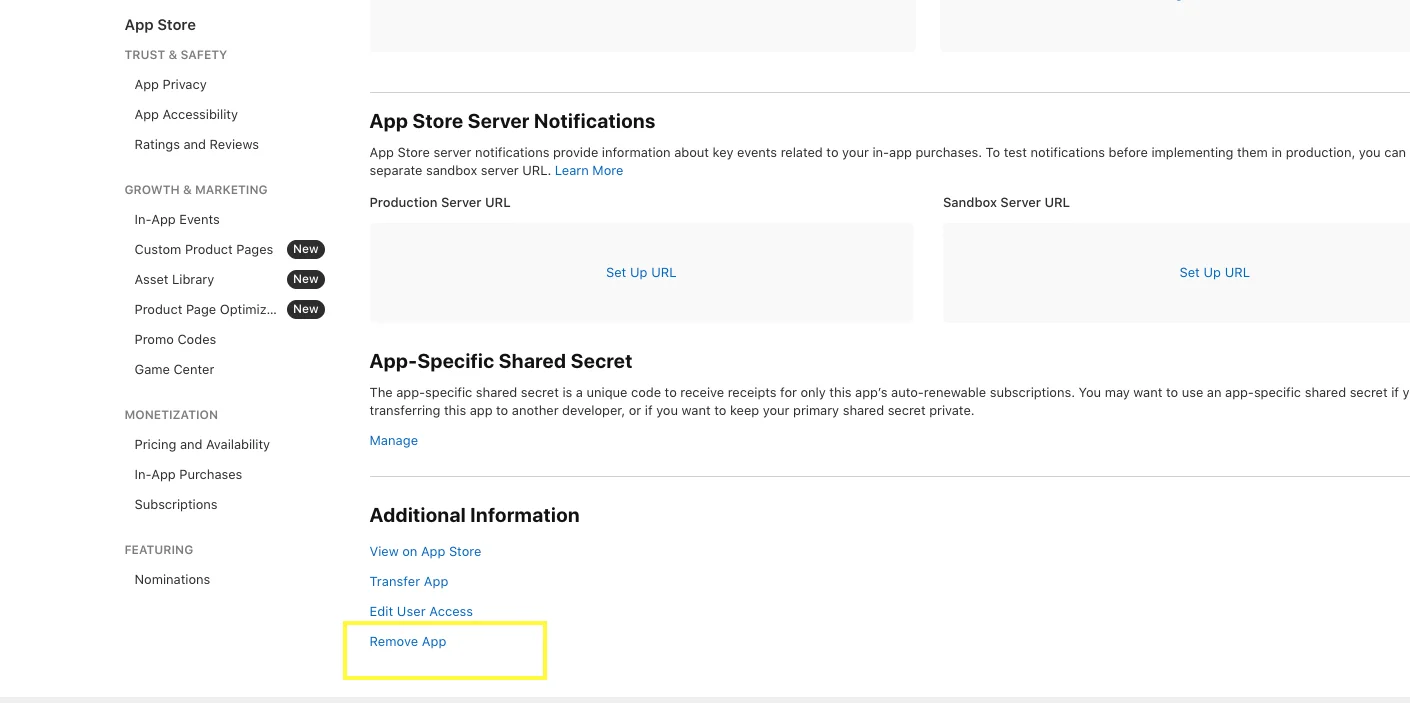
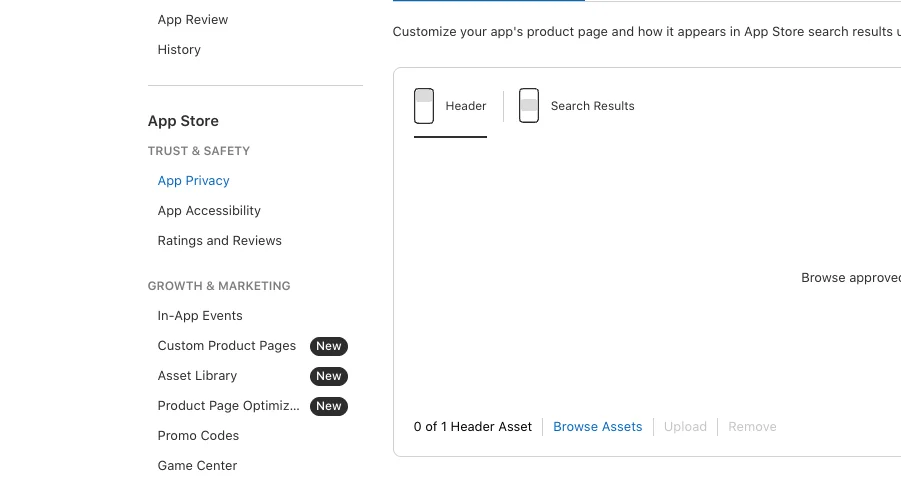
- In App Store Connect, open your app and go to the App Privacy section, then start or edit the privacy details.
- Answer whether you or your third-party partners collect data from the app. If Firebase Analytics is present, the answer is yes.
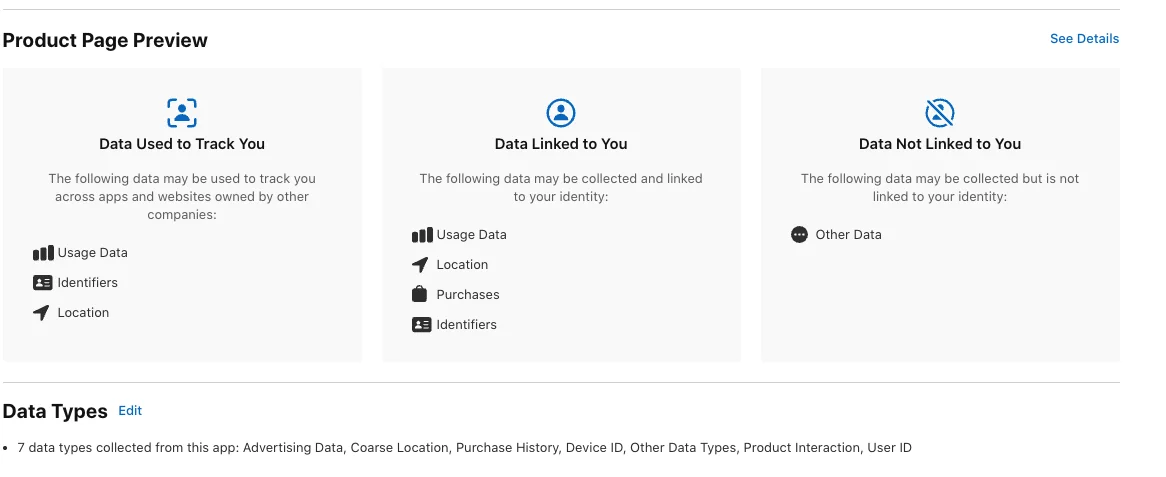
- Select every data type your app collects, including data collected by SDKs. Common candidates to evaluate are identifiers (such as a device ID or user ID), usage data (such as product interaction), and diagnostics (such as crash data, if you also use a crash reporting library).
- Click Continue. Apple's instructions say to then open each newly added data type and answer the follow-up questions for it.
- For each type, state why you collect it (for analytics, app functionality, and so on), whether it is linked to the user's identity, and whether it is used for tracking.
- Review the summary preview and publish the answers.
Repeat the review whenever you add an SDK, enable a new Firebase product, or start sending new data. Apple expects the information to be provided with each new app and app update, so make it part of your release checklist.
Linked to You and Tracking: The Questions That Cause Mistakes
Linked to the user. This asks whether the data is connected to a person's identity, for example through an account ID or device identifier. If you call Firebase's user ID setter with your own account ID, analytics events are tied to that account, and you should answer accordingly. A discussion thread published on 2026-10-21 makes the same general point: analytics data, and whether it is linked to the user, should be declared in App Store Connect.
Apple's policy page also notes that the vendor identifier (IDFV), an identifier shared by apps from the same developer, may be used for analytics across your own apps. Think about whether any identifier you use is persistent enough to count as linked.
Used for tracking. Apple's rules say that certain uses of third-party data require App Tracking Transparency (ATT) permission: ad targeting, ad measurement, and sharing with data brokers. If your app does none of these, a "no tracking" answer may be accurate. If you link Analytics data to advertising products or share it for those purposes, it is not.
Be cautious with forum advice. One commenter argues that Firebase or Google Analytics can be used without consent when the data is not tied to an advertising ID or shared with data brokers. Another developer reported selecting "No, we do not use this for tracking purposes" for Analytics and Crashlytics data because they believed those SDKs did not use the information for tracking. These are individual opinions and reports, not official rules, so base your answer on your own configuration.
Controlling what is collected
If you decide to reduce collection, you can switch Analytics off until the user opts in. This Swift call is part of the Firebase Analytics API:
import FirebaseAnalytics

func applyAnalyticsConsent(_ granted: Bool) {
    Analytics.setAnalyticsCollectionEnabled(granted)
}
Whatever you choose, the label must describe the shipped behavior. If collection is on by default, the label should say so.
Conclusion
Filling out App Privacy details for a Firebase app is mostly an inventory exercise: list the Firebase products you installed, read their privacy manifests, add anything your own code sends, and then answer the purpose, linked, and tracking questions for each data type.
Treat the label as living documentation. Revisit it with every SDK change or new Firebase feature, and rely on your app's real behavior rather than community shortcuts.