



Testing location-aware apps on a real device means walking around, which is slow and impossible to repeat. The iOS Simulator and Xcode let you fake a position instead, so you can check how your app behaves in Tokyo, New York, or on a moving route without leaving your desk.
This guide covers the main ways to customize location in Xcode 27 and later: the Run scheme, the debugger, the test plan editor, GPX files, UI automation, and plain unit tests. The research behind this article comes from Apple documentation and community reports, and some of it does not state which Xcode version it applies to. Menu names have moved between releases, so if something looks slightly different in your Xcode 27 build, look for the closest equivalent.
Choosing the Right Way to Set a Simulated Location
Xcode offers several mechanisms, and each fits a different situation. Pick the one that matches what you are doing.
- Scheme option: best when you run the app from Xcode and want the same location every launch.
- Debugger button: best for switching location quickly while the app is already running.
- Test plan: best for automated tests that need a fixed location or a replayed journey.
- XCUIDevice: best for UI tests that must change location from code.
- Plain coordinates: best for unit tests of logic that does not need a location manager.
Approach 1: Set a Location in the Run Scheme
Use this when you want every launch from Xcode to start with a specific place. The setting is stored in the scheme, so it can be shared with your team through source control if the scheme is shared.
Step 1: Open the scheme editor
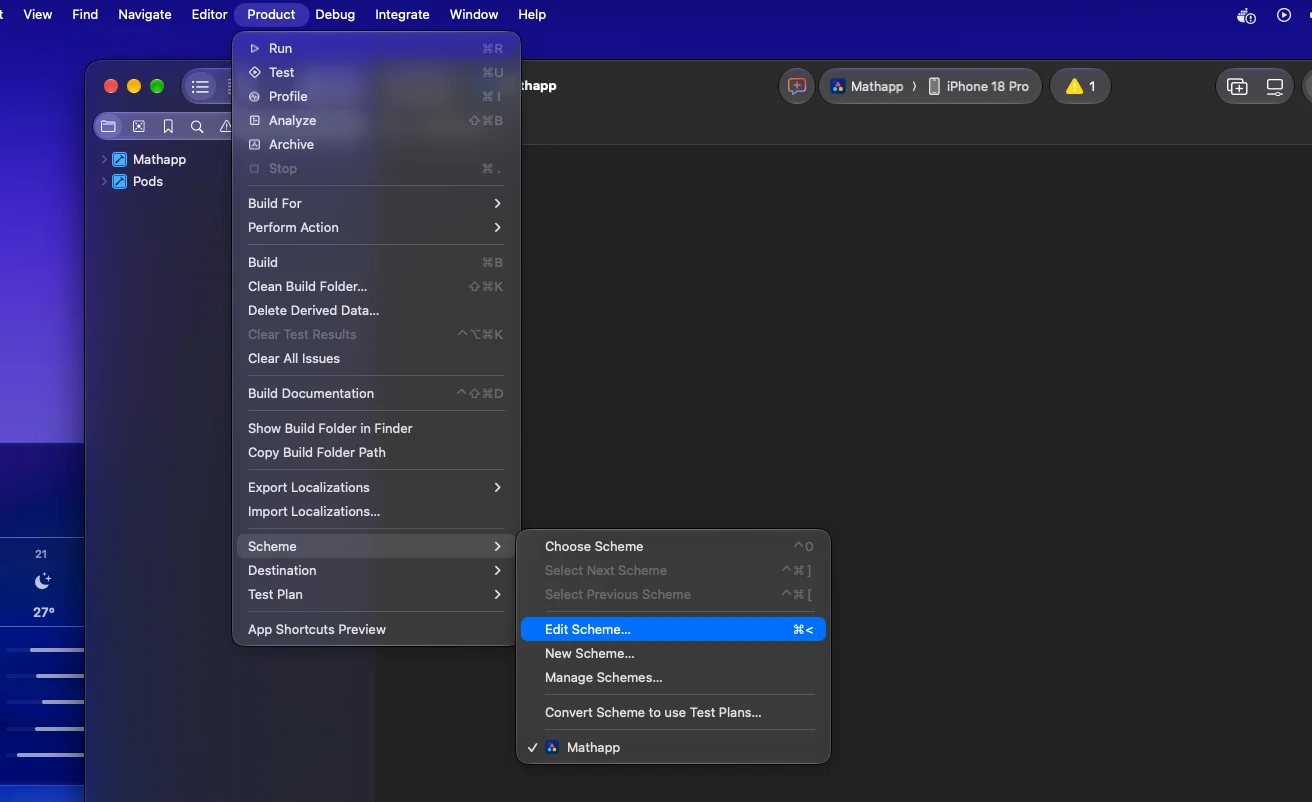
Choose Product -> Scheme -> Edit Scheme, or hold Option and click the Run button. Select Run in the left sidebar, then open the Options tab.

Step 2: Enable and choose a location
If it is not already checked, enable Allow Location Simulation. Then open the Default Location menu and choose None, one of the listed cities, or Add GPX File to Project.
Choosing a city is the fastest option. Choosing None turns off the scheme-level simulation.
Step 3: Run the app
Build and run on a simulator. When your code asks Core Location for the position, it receives the location you selected. Keep in mind that your app still needs location permission, so accept the system prompt on first launch.
Approach 2: Change Location from the Debugger
Use this when the app is already running and you want to jump to a new place without stopping and editing the scheme.
Step 1: Run the app from Xcode
Launch the app on a simulator with the Run action. The debug bar appears at the bottom of the editor once the session is active.
Step 2: Click Simulate Location
In the debug bar, click the Simulate Location button (the arrow icon). Pick a predefined location from the list, or choose Add GPX File to Project to use your own file.
The app receives the new position right away, which makes this ideal for checking how your UI reacts to a sudden change.
Approach 3: Use a GPX File
Use a GPX file when you need a specific coordinate that is not in the built-in list. The Run scheme and debugger options support waypoint (wpt) tags only. Route (rte) and track (trk) tags are not supported there, so do not expect a journey to replay from those entry points.
Step 1: Create the GPX file
Create a plain text file with the .gpx extension and add a waypoint with your coordinates. For example:
<?xml version="1.0"?>
<gpx version="1.1" creator="Xcode">
  <wpt lat="40.75" lon="-73.75">
    <name>Custom Spot</name>
  </wpt>
</gpx>
You can list several wpt entries in one file if you want to define more than one point.
Step 2: Add it to the project
In the scheme's Default Location menu or the debugger's Simulate Location menu, choose Add GPX File to Project and select your file. Xcode adds it to the project and lists it alongside the built-in locations.
Step 3: Select and verify
Pick the new entry and run the app. Check that your map or location label shows the coordinates you defined.
Approach 4: Set Location in a Test Plan
Use a test plan when you want automated tests to run against a known location every time, including on CI.
Step 1: Open the test plan editor
Open your .xctestplan file in Xcode and select the Configurations tab.
Step 2: Choose a simulated location
Under Localization, find Simulated Location and choose a location from the menu. To replay a journey instead, add a GPX file through the same setting. A GPX file can update the simulated location, elevation, and velocity, and you can add several files and select the one you want.
Step 3: Understand the limits
A location set this way applies only to code running in the test bundle. UI automation launches your app as a separate process, so the test-plan location is not used by the app under UI test. For that case, use the next approach.
Approach 5: Set Location in UI Tests with XCUIDevice
Use this when a UI test needs to control the location of the app it is driving.
Step 1: Build an XCUILocation
Create a CLLocation with the coordinates you want and wrap it in an XCUILocation.
import XCTest
import CoreLocation

let location = XCUILocation(
    location: CLLocation(latitude: 37.334886, longitude: -122.008988)
)
Step 2: Assign it to the shared device
Set the location on the shared XCUIDevice before or during your test.
func testNearbyPlaces() {
    XCUIDevice.shared.location = XCUILocation(
        location: CLLocation(latitude: 37.334886, longitude: -122.008988)
    )
    let app = XCUIApplication()
    app.launch()
    // Assert on the UI that depends on location
}
Call it again with different coordinates in the same test to simulate the user moving.
Approach 6: Pass Coordinates Directly in Unit Tests
If you are testing logic such as distance calculations or region checks, you often do not need a simulated location at all. Apple's documentation suggests constructing CLLocationCoordinate2D values with known latitude and longitude and passing them straight to the code under test, without involving CLLocationManager or the device location.
let coordinate = CLLocationCoordinate2D(latitude: 40.75, longitude: -73.75)
let result = RegionChecker().contains(coordinate)
XCTAssertTrue(result)
This keeps tests fast and deterministic, and it works well when you design your code to accept coordinates as parameters rather than reading them from a manager.
Using the Simulator Menu (and a Note on Older Guides)
You may also find advice to set a location from the Simulator app's own menu. Older Apple guides describe Debug -> Location -> Custom Location, with a sample of latitude 40.75 and longitude -73.75, and mention a static location or a route. That guide is archived and was retired as of Xcode 9. Community reports say the item later moved from Debug to Features in the Simulator menu around Xcode 11.6.
In Xcode 27 the menu layout may differ again, so check the Simulator menu bar for a Location submenu under Features or a similarly named menu. If you cannot find it, the scheme and debugger methods above are more reliable.
Troubleshooting Tips
- Location never changes: confirm Allow Location Simulation is enabled in the scheme and the app has location permission.
- GPX route does not move: the scheme and debugger options accept only
wpttags. Use a test plan if you need a replayed journey in tests. - UI test ignores the test plan location: the app runs in a separate process, so set
XCUIDevice.shared.locationinstead. - Wrong place after relaunch: check whether the scheme's default location is overriding what you chose in the debugger.
Conclusion
Xcode gives you several levels of control over simulated location. Use the Run scheme for a consistent starting point, the debugger for quick changes, GPX waypoints for custom places, test plans for repeatable automated runs, and XCUIDevice for UI tests that need to move the user.
For pure logic, skip simulation and pass known coordinates directly. Match the method to the scenario and your location testing will be faster and far more reliable than walking around with a device.