
Unpublishing an Android app is the standard way to take it off Google Play without losing the app's record in your developer account. Once an app is unpublished, new users can no longer find or download it from the store, but people who already installed it can keep using it and can still receive updates. Unpublishing is not the same as deleting: it removes the app from the store, and the app can be republished later.
This guide walks you through the current Play Console path, the checks to make before you start, and what to expect afterward. It also covers the older menu locations you may see in outdated tutorials, so you aren't thrown off when a forum answer doesn't match what's on your screen.
Before You Start
Play Console may block the unpublish action if something in your account or app is not in order. Run through this short checklist first:
- Accept the latest Developer Distribution Agreement. If a new version is waiting for your approval, Play Console may stop you from making changes until you accept it.
- Resolve outstanding app errors. Missing information such as the content rating questionnaire or target audience details can prevent the change from being saved.
- Turn off Managed publishing. If Managed publishing is active for the app, the unpublish request can't go through until you disable it.
- Confirm you have the right permissions. You need to be signed in with an account that can manage the app's release and availability settings.
It is also worth deciding whether unpublishing is really what you want. If your goal is to stop distributing the app to new users while keeping it working for current ones, it's the right tool. If your goal is to erase the app entirely, unpublishing alone will not do that; it only removes the listing from the store.
What Happens When You Unpublish
Understanding the consequences helps you avoid surprises:
- New users cannot find the app in Google Play search, browse, or on its store page, and cannot download it.
- Existing users keep the app on their devices, can continue to use it, and can still receive updates.
- The app is not deleted. It stays in your Play Console, so you can republish it later.
If you need the app to stop working for current users, unpublishing is not enough on its own. You would need to handle that on your side, for example through a server-side switch or a final update that informs users about the shutdown.
How to Unpublish Your App in Play Console
The steps below reflect the current Play Console layout. The main change over the years is that the option has moved from the old Store presence section to the Test and release section, so older guides will point you to menus that no longer exist.
Step 1: Open Play Console and select your app
Sign in to Google Play Console with the developer account that owns the app. From the All apps list, click the app you want to unpublish. This opens the app's dashboard, where you can see its status, releases, and any pending tasks.
Before moving on, glance at the dashboard for warnings or required actions. Any unresolved items, such as missing content rating or target audience information, should be fixed now so they don't interrupt the process later.
Step 2: Go to Advanced settings
In the left-hand menu, expand Test and release, then open Setup, and click Advanced settings. This page holds app-wide options that control how the app is distributed.
If you cannot see these menu items, make sure you have chosen the correct app and that your account has permission to manage release settings.
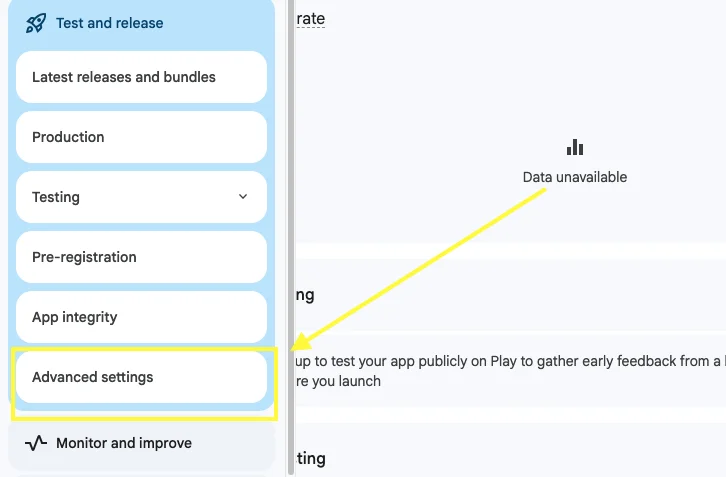
Step 3: Open the App Availability tab
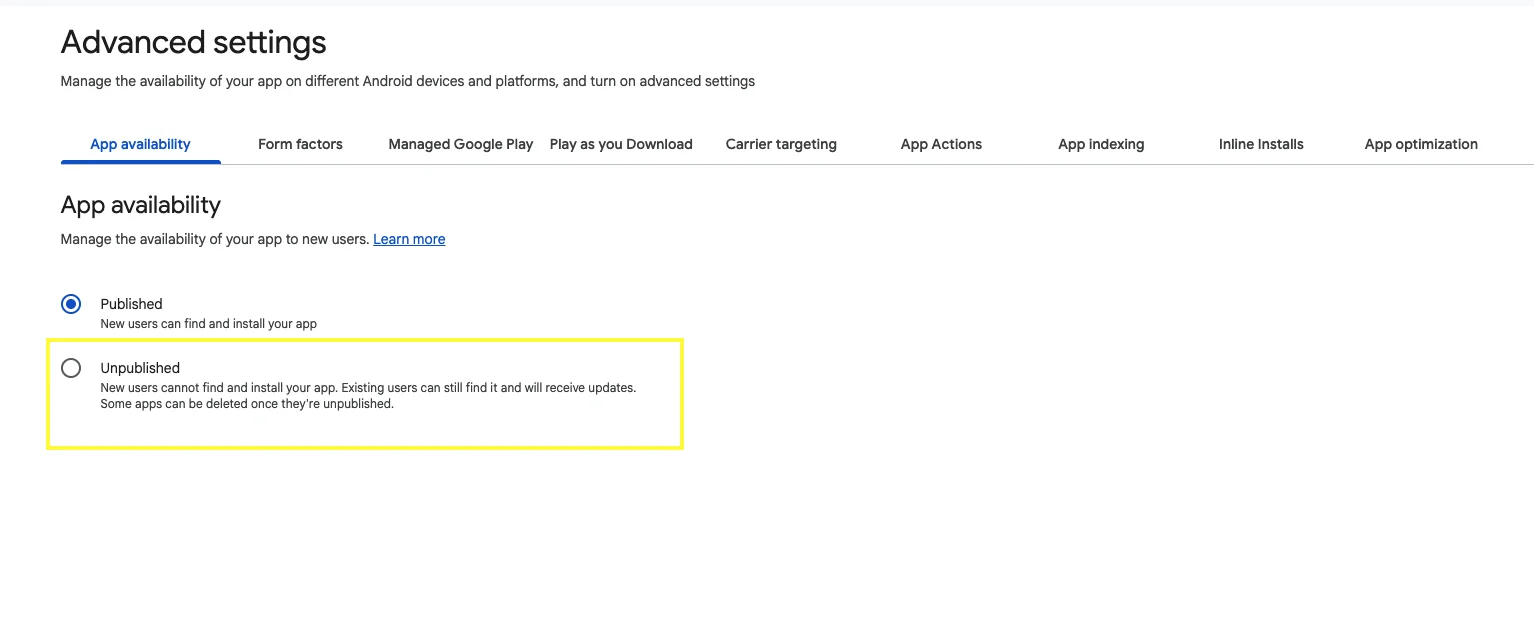
On the Advanced settings page, select the App Availability tab. Here you'll see the app's current availability status, which should read as published if the app is live on Google Play.
This tab is where the unpublish control lives. In older versions of Play Console, the same control appeared under Store presence -> Pricing & distribution -> App Availability. If a tutorial tells you to look there, it is describing the legacy layout.
Step 4: Select Unpublish
Click Unpublish. Play Console will ask you to confirm the action and may remind you that new users will no longer be able to find or download the app. Read the prompt carefully, then confirm.
If the button is disabled or you see an error, return to the checklist above. The most common causes are an unaccepted agreement, incomplete app content declarations, or Managed publishing being enabled. Fix the issue and try again.
Step 5: Verify the app status
After you confirm, return to the App Availability tab or the dashboard and check that the status now shows the app as unpublished. The change can take a little time to take effect on Google Play, so the store listing may linger briefly before it disappears for new users.
You can double-check by searching for the app on Google Play from a device or account that has not installed it. Once the change has propagated, it should no longer appear.
Troubleshooting Common Problems
- The Unpublish option is missing. You may be looking at an outdated tutorial. Use Test and release -> Setup -> Advanced settings -> App Availability instead of the legacy Store presence route.
- You see an error when saving. Complete any missing required sections, such as content rating and target audience, then retry.
- You are asked to accept an agreement. Review and accept the latest Developer Distribution Agreement, then return to the app.
- Managed publishing is on. Turn it off for the app before attempting to unpublish.
- The app still appears in search. Allow some time for the change to propagate, and test using an account that has not installed the app.
Can You Delete the App Instead?
Unpublishing removes the app from the store but does not delete it from your Play Console. This has been the behavior for years, and community answers dating back to 2018 and 2019 describe the same limitation. In practice, that means your app entry remains in your developer account, along with its history, and you keep the option to bring it back.
If your real goal is to stop new installs while keeping a path back to the store, unpublishing is the safest choice because it is reversible.
Republishing Later
Because the app remains in your account, you can make it available again when you're ready. Return to the same App Availability area, and look for the option to publish the app again. Before doing so, make sure your store listing, content declarations, and release information are up to date, since Play Console may require you to resolve any outstanding items before the app can go live.
If you have been away for a while, also check that your target API level, policy declarations, and developer account details still meet Google Play's current requirements. Fixing these before republishing saves time and avoids rejections.
Best Practices Before Unpublishing
- Notify your users. Since existing users can still use the app, consider an in-app message or a final update explaining why the app is leaving the store.
- Plan for support. Existing users may still contact you, so keep your support channels open for as long as the app is in use.
- Keep your backend running. If the app relies on a server, remember that current users will continue to depend on it unless you shut it down deliberately.
- Back up your assets. Keep copies of your signing keys, store listing text, graphics, and release notes so republishing is straightforward.
- Review subscriptions and in-app purchases. Make sure you understand how any ongoing billing will be handled for people who already have the app.
Conclusion
To unpublish your Android app, open Play Console, select the app, go to Test and release -> Setup -> Advanced settings, open the App Availability tab, and select Unpublish. Before you do, accept the latest Developer Distribution Agreement, fix any outstanding app errors, and make sure Managed publishing is off.
Remember that unpublishing only hides the app from new users: existing users keep access and can still get updates, and you can republish later. If you need more than that, plan any additional steps on your own side so users aren't caught off guard.