Your app's category and tags help Google Play understand what your app does and help users discover it. Category places your app in a broad group, such as a type of app or game. Tags add finer detail about features, themes, or accessibility support.
This guide walks you through the process in Google Play Console: where to find the settings, how to pick a category, how to choose tags (up to five), and how to save your changes. It also covers best practices and a few things to check if your changes do not appear right away.
Update your category and tags
Both settings live in the same place in Play Console: the Store settings page. You can change the category and tags in a single visit, then save everything together. Before you begin, make sure you are signed in with an account that has permission to manage the store presence of the app. Also take a moment to decide which category and tags describe the app as it works today, not as it was when you first published it.
Step 1: Open Store settings for your app
Sign in to Google Play Console and select the app you want to edit from your app list. In the left-hand menu, go to Grow users -> Store presence -> Store settings.
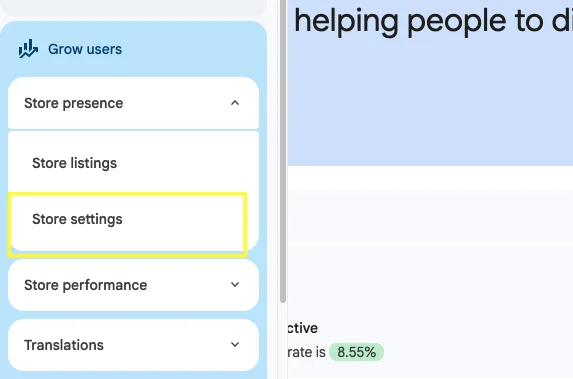
The Store settings page contains several sections. The one you need is App category, where both the category and tags are managed.
Step 2: Choose the application type and category
In the App category section, first select the application type: either an app or a game. Then pick the category that best matches the main purpose of your app from the list that appears.
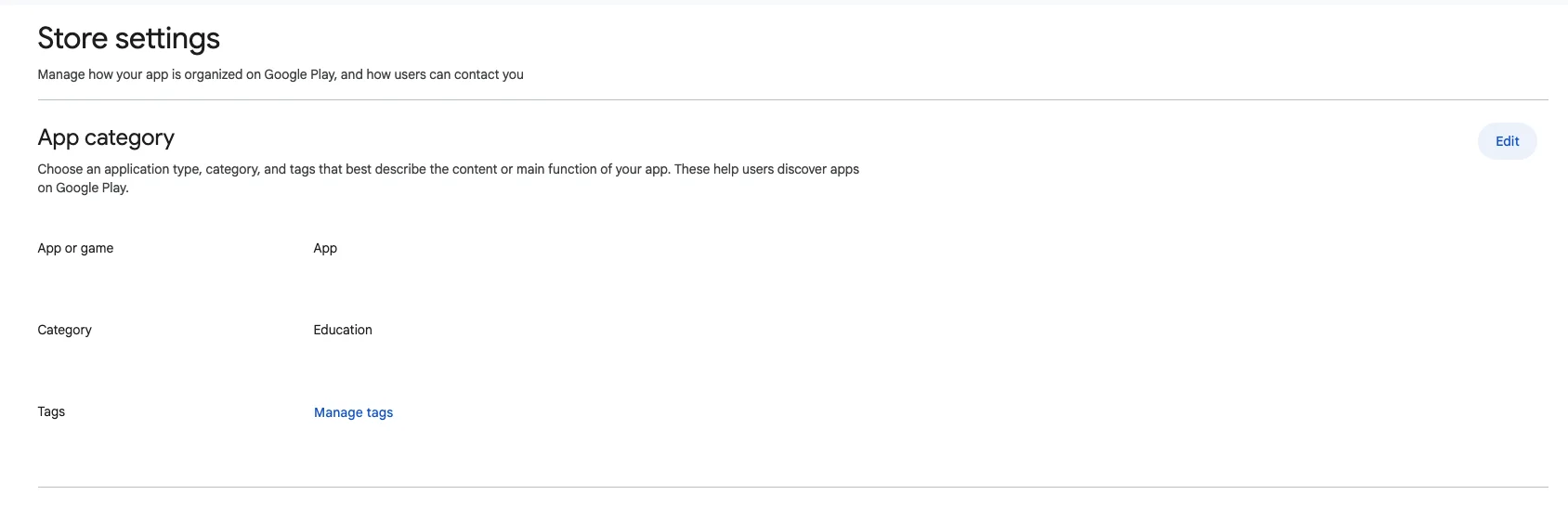
Choose the category users would most expect to find your app in. Think about your core functionality rather than a secondary feature. If your app could fit more than one category, pick the one that represents what most users do with it most of the time.
Be careful with categories that have only just been introduced. Google has warned that selecting a newly added category before it is available to users may change your app's current category. If you see a category that is new to you, check that it is live for users before relying on it.
Also note that free-to-install applications categorized as games appear on both Google Play and Google Play Games on PC by default. If you switch an app to the game type, keep that in mind.
Step 3: Open the tag manager
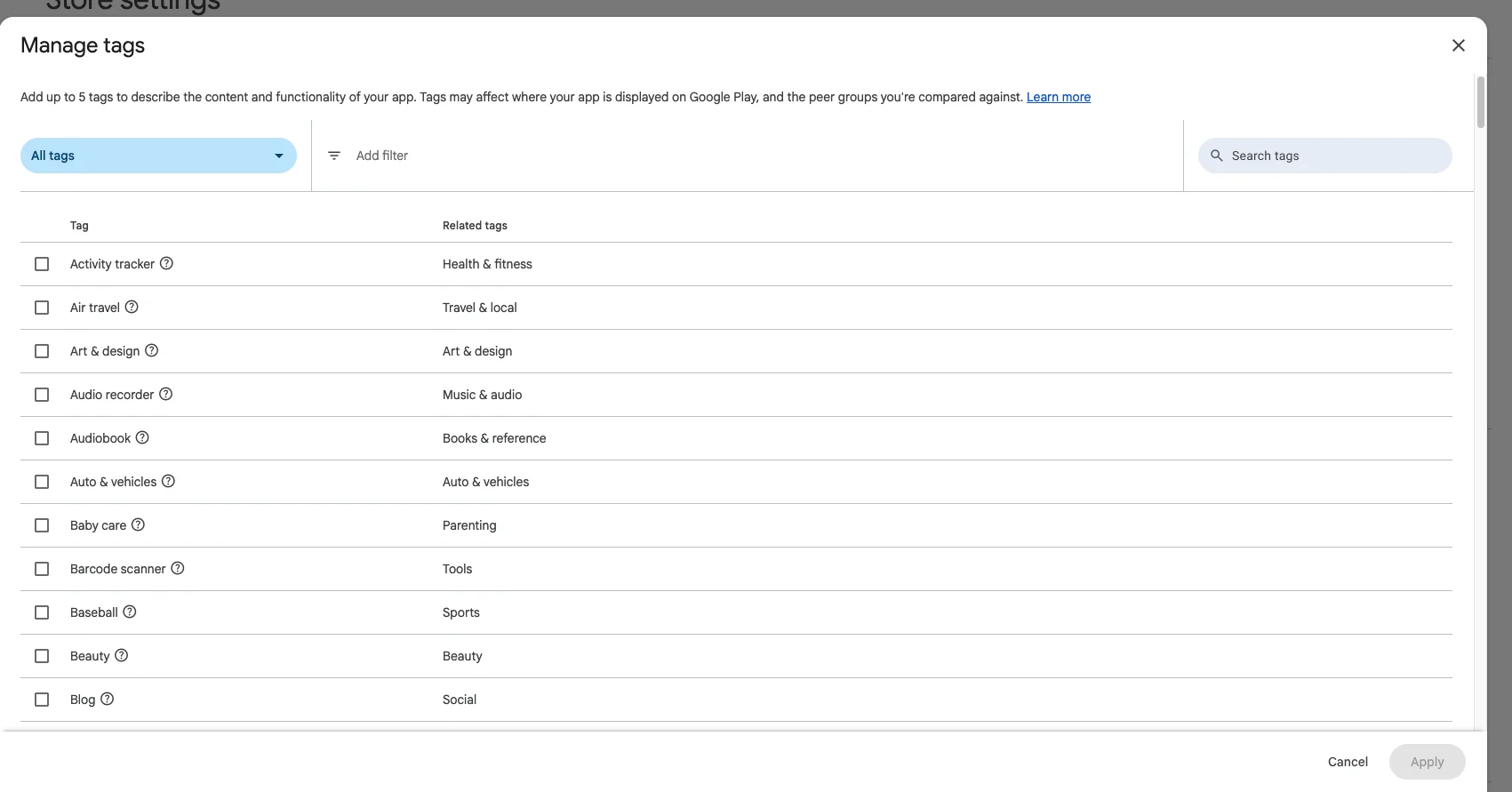
Still in the App category section, find the tags area and select Manage tags. A panel opens where you can browse and select tags from a fixed list. You cannot create custom tags; you choose from what Google Play provides.

Step 4: Select up to five tags
An app or game can have a maximum of five tags. If more than five seem relevant, choose the ones most strongly associated with your app. Quality matters more than quantity here.
There are several ways to find tags in the panel:
- Suggested tags: a list of tags that Google suggests for your app.
- Search tags: type a keyword to find a matching tag quickly.
- Category filter: narrow the list by tag category.
- Other tags: browse the remaining tags that are not in the suggestions.
Google recommends choosing tags that are clearly relevant based on your store listing or the initial in-app experience. In other words, a new user should be able to see why each tag applies shortly after opening the app. Avoid tags for features that are buried deep, planned for the future, or only loosely related.
Step 5: Consider accessibility tags
If your app supports accessibility features, look for the accessibility tags in the list. These include:
- Screen reader-friendly
- Visual assistance
- Hearing assistance
- Learning disability
- Motor assistance
- Accessible communication
Only select a tag when your app genuinely supports that need. Because you have just five slots, weigh accessibility tags against other descriptive tags and keep those that are most accurate for your app.
Step 6: Save your changes
Confirm your tag selection in the panel, then save the changes on the Store settings page. Depending on the state of the app, the button may differ: for a new app that has not yet been published, you can select Save draft, while for an existing app you use Submit update. Some guides also mention an Apply button when confirming tags in the panel, so apply the selection first and then save the page.
Review the category and tags once more before you save, since they affect how your app is grouped and found.
Step 7: Wait for the changes to appear
After saving, changes may take up to 24 hours to appear on your app's Google Play page. Do not worry if the old category or tags still show for a while. Check back the next day before troubleshooting.
Best practices for choosing category and tags
- Match reality: pick tags that reflect what users see in your listing or first-run experience.
- Prioritize: with a five-tag limit, keep only the most strongly associated tags.
- Re-evaluate after big updates: Google recommends reviewing your tags after significant changes to your app's content or functionality.
- Keep your listing consistent: your category, tags, description, and screenshots should tell the same story.
- Change deliberately: some third-party sources claim there is no waiting period or limit on how often you can change a category, but this is not stated in Google's own help, so avoid switching back and forth without a clear reason.
Troubleshooting
- You cannot find Store settings: make sure you have selected an app first, then look under Grow users -> Store presence. If it is still missing, your account may lack the needed permissions.
- You cannot add a sixth tag: the maximum is five. Remove one before adding another.
- A tag you want is not listed: tags come from a fixed list, so try Search tags, the category filter, or Other tags. If nothing matches, choose the closest relevant option.
- Changes are not visible: allow up to 24 hours after saving.
- Your category changed unexpectedly: this can happen if you select a newly added category that is not yet available to users. Reopen Store settings and confirm your selection.
Conclusion
Updating your app's category and tags takes only a few minutes: open Grow users -> Store presence -> Store settings, choose your application type and category in App category, use Manage tags to select up to five relevant tags, and save.
Treat these settings as part of regular app maintenance. Review them whenever your app's content or functionality changes significantly, keep them honest and focused, and allow up to 24 hours for the update to show on Google Play.