Google Play Console lets you share access to your developer account without sharing a single login. You can invite teammates, contractors, and agencies, then control exactly what each person can see and do. Permissions can be granted per person or through reusable permission groups, which are useful when several people need the same access.
This guide walks through the full lifecycle of team access: understanding access levels, inviting a user, editing permissions, creating a permission group, extending access, and removing users. Google updated the web console's look and navigation recently, so menu positions may differ slightly from what you see. The page names and options below follow Google's documented workflow.
Managing Users and Permissions in Play Console
Before changing anything, it helps to understand how access is structured. Play Console has three access levels:
- Account owner: has full access. This is the only person who can have a linked payments profile for selling paid apps or can access and edit the Payments settings page.
- Admin: a person with the Admin (all permissions) permission. Admins can invite and remove users and manage their permissions.
- User: can have varying levels of access but cannot invite users or edit permissions.
Admins and users do not need to pay the $25 registration fee. Only the account owner does.
Account-level vs. app-level permissions
Permissions can be granted at two scopes. Account-level permissions apply to every app in your developer account. App-level permissions apply only to the apps you select. Some permissions exist at only one of these levels, so you may not see every option in both places.
As a rule, grant the narrowest scope that lets the person do their job. A freelance designer who only updates the store listing for one app should get app-level access to that app, not account-wide access.
Step 1: Open the Users and permissions page
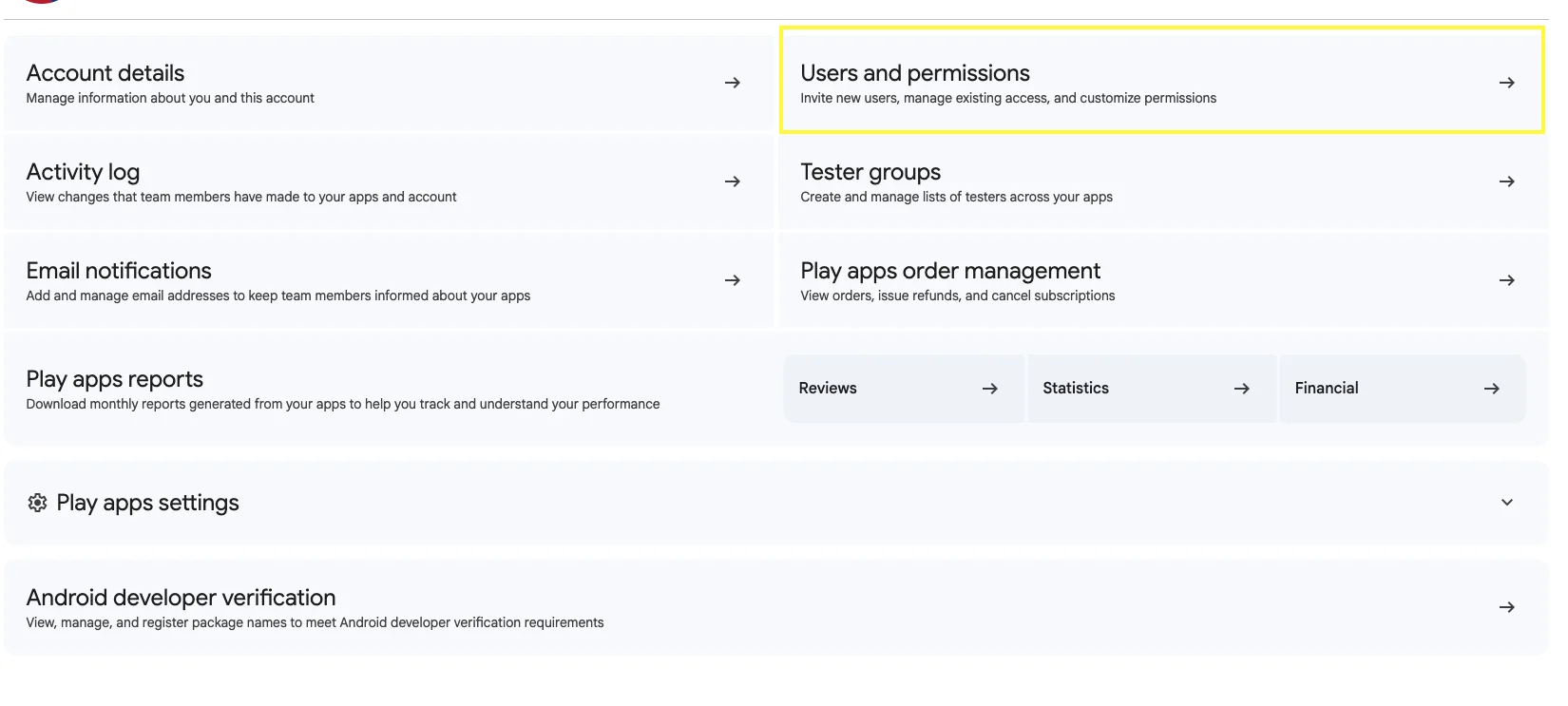
Sign in to Play Console with the account owner's account or with an admin account that has the Admin (all permissions) permission at account level. From the main navigation, open Users and permissions. This page is the hub for everything in this guide: the list of users, their invitation status, and the permission groups.

Step 2: Invite a new user
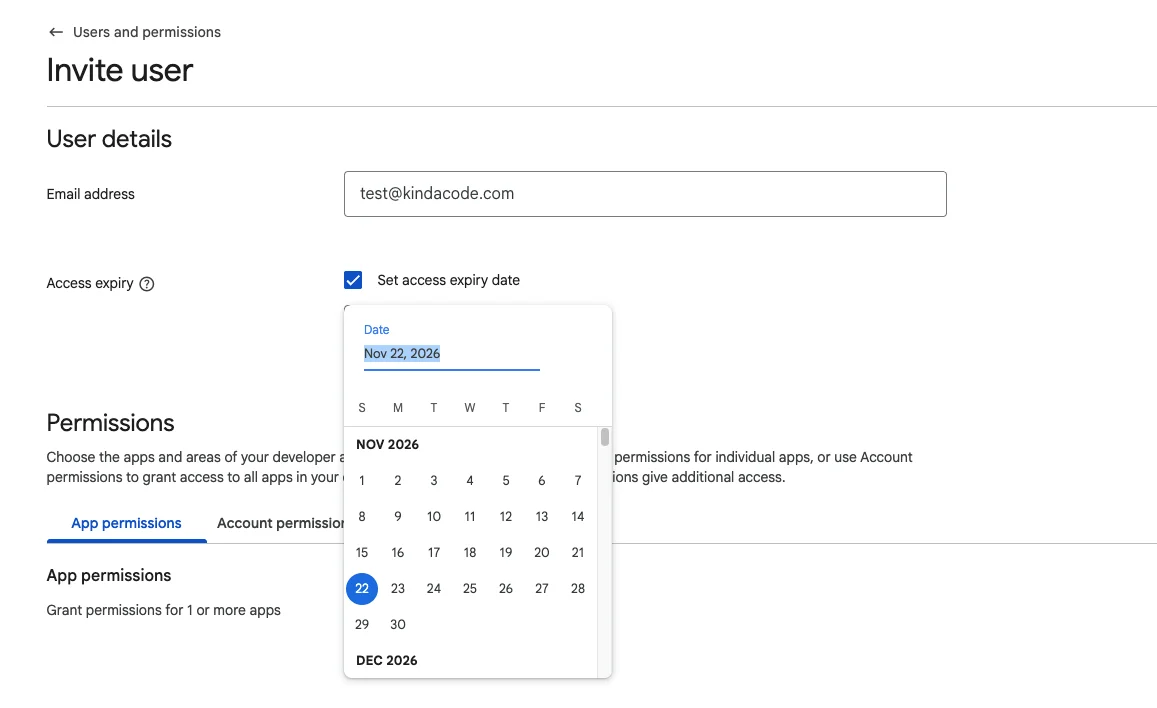
From Users and permissions, choose the option to invite a new user. Then:
- Enter the person's email address.
- Optionally, set an access expiry date. If you leave it empty, access continues indefinitely.
- Choose account-level permissions, app-level permissions, or both.
- Select Invite user.
Setting an expiry date is a good habit for short engagements such as contractors or audits, because access ends automatically without anyone needing to remember to revoke it.
Step 3: Confirm the invitation is accepted
The invited person must sign in with a Google account that uses the same email address the invitation was sent to. A different address will not work.
Sent invitations appear in the list with the status Invite sent. Once the person accepts and signs in, the status changes to Active, and the account owner receives a confirmation email. An invitation expires if it is not accepted within 30 days. In that case, an admin must resend it.
Step 4: Change an existing user's permissions
To adjust what someone can do, open Users and permissions and select the user's row. You will see their account permissions and app permissions.
- Account permissions apply across the entire developer account.
- App permissions are managed from the App permissions tab. Choose Add app to select specific apps, then set the permissions for each one.
Save your changes when finished. Review this page periodically; people's roles change, and permissions that made sense six months ago may now be too broad.
Step 5: Understand the Admin permission
The Admin (all permissions) permission grants admin access plus every other permission. Use it sparingly. There is an important distinction between its scopes:
- With global (account-level) admin access, an admin can change access expiry dates and review Play Console changes in the Activity log.
- With app-level admin access, an admin can see users who have access to the same apps, but cannot remove users who have global access.
If you want someone to manage a single app's team without touching the rest of the account, app-level admin is the safer choice.
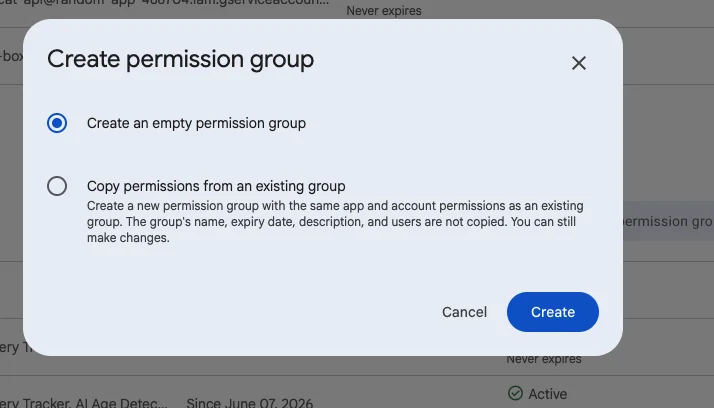
Step 6: Create a permission group
Permission groups let you manage permissions for multiple users at once. Anyone added to a group receives the group's selected account and app permissions. This is ideal for roles such as "QA testers," "Marketing," or "Release managers."
- Open Users and permissions and select the Permission Groups tab.
- Choose Create permission group.
- Enter a group name.
- Optionally, set an access expiry date and add a description. Descriptions are visible only to developer-account admins.
- Select account-level and/or app-level permissions for the group.
- Open the Users in this group tab and choose the members.
- Select Create group.
If you do not set an expiry date, the permissions granted through the group do not expire unless the group is removed.
Step 7: Extend access for several users
When access is about to expire, the account owner can extend it in bulk:
- Go to Users and permissions -> Manage users.
- Select the users you want to update.
- Choose Extend access.
- Set the extension period and confirm.
To change the expiry date for just one person, go to Users and permissions -> User details, select the user, set the new expiry date, and save your changes.
Step 8: Remove users
When someone leaves the team or a project ends, remove their access promptly. The account owner can do this in bulk:
- Go to Users and permissions -> Manage users.
- Select the users to remove.
- Choose Remove.
- Save your changes.
For one person, open their User details page and select Remove user.
Best practices
- Use least privilege. Start with app-level permissions and widen only when necessary.
- Prefer groups for repeated roles. Updating one group is faster and less error-prone than editing each person.
- Set expiry dates for temporary access. This protects you if cleanup is forgotten.
- Limit admins. Each admin can invite and remove users, so keep the number small.
- Audit regularly. Admins with global access can review changes in the Activity log.
Troubleshooting
- The invited user cannot see the invitation or access the console: confirm they are signed in to a Google account with the exact email address you invited.
- The invitation is stale: after 30 days it expires, so resend it.
- You cannot find an option: the console's interface was recently updated, and some navigation or layout elements may have moved. Check the tabs on Users and permissions, and verify you have the Admin (all permissions) permission, since users without it cannot invite people or edit permissions.
- You cannot remove a user: an app-level admin cannot remove users who have global access.
Conclusion
Managing access in Google Play Console comes down to a few repeatable actions: invite people with the right scope, group common roles into permission groups, use expiry dates for temporary access, and remove users when they no longer need access. Keeping the admin list short and favoring app-level permissions greatly reduces risk.
Make a quarterly review of the Users and permissions page part of your routine. A few minutes of cleanup keeps your developer account secure and your team productive.