Claude Code can only "see" a limited amount of text at once. That limit is the context window, measured in tokens (small chunks of text, roughly three to four characters each in English). Once the window fills up, older details get summarized or dropped, and answers can get worse.

This article shows how to see how full your window is, what is filling it, and how to keep a live indicator on screen.
What the Context Window Contains
The context window holds everything the model reads on each turn, not just your chat messages. In Claude Code that typically includes:
- The system prompt, which holds Claude Code's built-in instructions.
- Tool definitions, including any tools added by MCP (Model Context Protocol) servers.
- Memory files such as
CLAUDE.md. - The conversation so far: your prompts, Claude's replies, file contents it read and command output.
A long session where Claude reads many files can fill the window quickly. Even a fresh session starts with a non-trivial baseline, because the system prompt and tool definitions are always loaded.
Built-In Ways to Check Usage
The /context command
Type /context inside a session. Claude Code shows a visual grid of the window and a breakdown by category, such as system prompt, system tools, MCP tools, memory files, messages and free space. It also reports the total tokens used against the model's maximum.
This is the best first stop when you want to know why the window is fuller than expected. If MCP tools take up a large share, disconnecting servers you do not need frees space for the real work. Exact categories and layout vary between versions.
The /cost command
Running /cost shows token usage and spend for the current session. It is useful for budgeting, but it is not a measure of the current window. Cumulative tokens billed over a session are not the same as what is loaded right now, since the window is re-sent with each request and may be compacted.
Acting on what you see
/compactsummarizes the conversation to free space. You can add instructions, for example/compact keep the failing test names and the file paths we changed./clearwipes the conversation and starts clean, which is best when switching to an unrelated task.- Auto-compact runs on its own when the window nears its limit, so you rarely hit a hard wall. The summary is lossy, though, so compacting manually at a natural breakpoint usually preserves more of what matters.
Adding a Live Indicator with a Custom Status Line
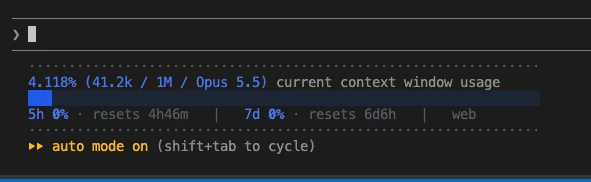
Claude Code supports a configurable status line at the bottom of the interface. You point it at a command, and Claude Code runs that command and pipes a JSON description of the session to its standard input. Whatever the command prints becomes the status line.
The JSON includes fields such as model (with a display_name), cwd, session_id and transcript_path. The transcript is a JSONL file (one JSON object per line) that records the session, and assistant entries carry a usage object with token counts. Reading the latest one gives a good estimate of the current window size.
Save this script as ~/.claude/statusline.py:
#!/usr/bin/env python3
import json
import sys

# Assumed window size. Change it if your model or plan uses a different limit.
WINDOW = 200_000


def latest_usage(path):
    last = None
    try:
        with open(path, encoding='utf-8') as f:
            for line in f:
                try:
                    entry = json.loads(line)
                except json.JSONDecodeError:
                    continue
                message = entry.get('message')
                if not isinstance(message, dict):
                    continue
                usage = message.get('usage')
                if entry.get('type') == 'assistant' and usage and not entry.get('isSidechain'):
                    last = usage
    except OSError:
        return None
    return last


data = json.load(sys.stdin)
model = (data.get('model') or {}).get('display_name', 'Claude')
usage = latest_usage(data.get('transcript_path', ''))

if usage is None:
    print(f'{model} | context: n/a')
else:
    used = (
        usage.get('input_tokens', 0)
        + usage.get('cache_read_input_tokens', 0)
        + usage.get('cache_creation_input_tokens', 0)
        + usage.get('output_tokens', 0)
    )
    pct = used / WINDOW * 100
    print(f'{model} | context: {used:,} / {WINDOW:,} tokens ({pct:.0f}%)')
Then register it in ~/.claude/settings.json:
{
  "statusLine": {
    "type": "command",
    "command": "python3 ~/.claude/statusline.py"
  }
}
Restart Claude Code and the line updates as the conversation grows. You can also run /statusline and describe what you want, and Claude Code will help generate a script for you.
Limitations to Keep in Mind
- The transcript-based number is an estimate. It reflects the last request sent, so it can lag slightly, and it may differ from what
/contextreports. - The window size is hard-coded in the script. Some models and plans offer larger windows, so adjust
WINDOWto match yours. Newer Claude Code releases may also pass context information directly in the status line JSON, so check the official status line documentation before relying on transcript parsing. - The transcript format is not a documented public contract and could change.
Conclusion
For a quick, accurate check, use /context: it shows both the total and where the tokens went. Use /compact or /clear when the window gets crowded.
If you want constant visibility, a small status line script gives a running estimate without interrupting your work. Treat it as a gauge rather than an exact figure, and confirm with /context when it matters.